Set your dominant eye
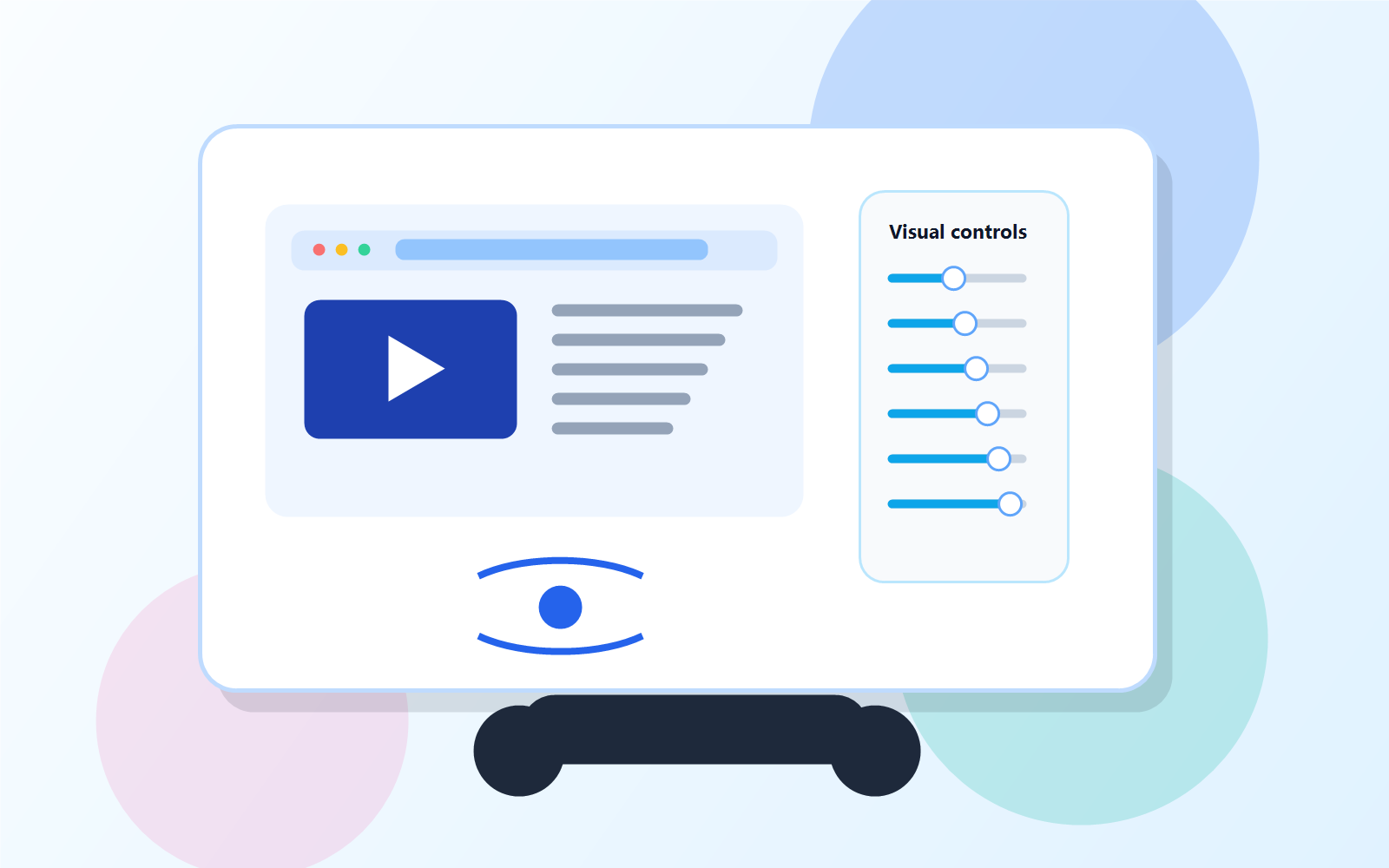
Choose left or right dominance, then adjust blur, brightness, contrast, and flicker controls from one VR panel.
Meta Quest VR workspace for lazy-eye visual practice
EyeDesk VR helps Meta Quest users watch, browse, and mirror Windows while tuning each eye separately, so everyday screen time becomes a controlled, self-guided visual practice routine.
EyeDesk VR is not a medical device. It does not diagnose, treat, cure, prevent, or monitor any health condition.
Why it exists
If screen time already happens every day, EyeDesk VR gives it structure: choose the dominant eye, tune each eye separately, and keep sessions consistent while using content you already watch or work with.
Choose left or right dominance, then adjust blur, brightness, contrast, and flicker controls from one VR panel.
Use brightness boost, contrast boost, and edge enhancement so the non-dominant eye receives a clearer, more noticeable image.
Apply split-eye display settings while watching YouTube, browsing websites, or mirroring Windows instead of opening a separate exercise app.
Why buyers choose it
Watch videos, read pages, or use web content on a large VR screen without needing a PC.
Connect a Windows PC over the same Wi-Fi with LAN discovery, adjustable stream quality, and desktop audio for work, learning, or media.
Set screen size, distance, IPD offset, room brightness, and screen tint so the VR workspace feels easier to stay with.
Use duration targets, break reminders, auto-dimming, local history, and weekly totals so the habit does not depend on memory.
Simple purchase-to-use flow
Ready on Meta Quest
If you already own Meta Quest, EyeDesk VR adds a dedicated per-eye visual practice workspace without subscriptions or clinic-style setup. Buy the app, then download the Windows host only if you need desktop mirroring.
Optional Windows companion
For Remote Desktop mirroring, install this on the Windows PC you want to stream to EyeDesk VR. It is not required for built-in browser and YouTube use. Mac host is not included in this release.
Download Windows hostImportant safety note
EyeDesk VR gives you display controls and routine structure while watching, browsing, or using Windows in VR. It does not diagnose, treat, cure, prevent, or monitor eye conditions, and it does not replace eye-care advice.